Finding the right crane for your project can be time-consuming and costly, especially when dealing with multiple suppliers and unclear pricing. MYCRANE simplifies this process by allowing you to submit your requirements and receive competitive quotes from verified suppliers, fast, easy, and transparent.
In this article, we’ll walk you through the step-by-step process of how to rent a crane using MYCRANE and maximize efficiency for your project.
My crane
1. Introduction
Welcome to MYCRANE. We are glad to have you as Customer on our Platform!
This manual will give you a complete overview of all functionalities of the MYCRANE Crane Rental Platform. The manual can be used to assist you in completing your first crane inquiry, and to give you an overview of all functionalities.
Some of our users have extensive experience in the crane industry. For those people a manual is not required and you can start the MYCRANE product immediately. Therefore, we have included a short explanation in Section 3. Other users are new to the crane industry, for those people we have added a full explanation in this manual.
If you’re a first-time user or if you’re an experienced crane expert, don’t hesitate to contact our support department. We are available 24 / 7 to help you with all questions related to MCYRANE, or the crane industry in general. You can contact us at " in.info@my-crane.com " or by phone at +91 93210 03850.
Thank you again for joining MYCRANE - We look forward to working with you.
2. Registration
2.1 MYCRANE webpage
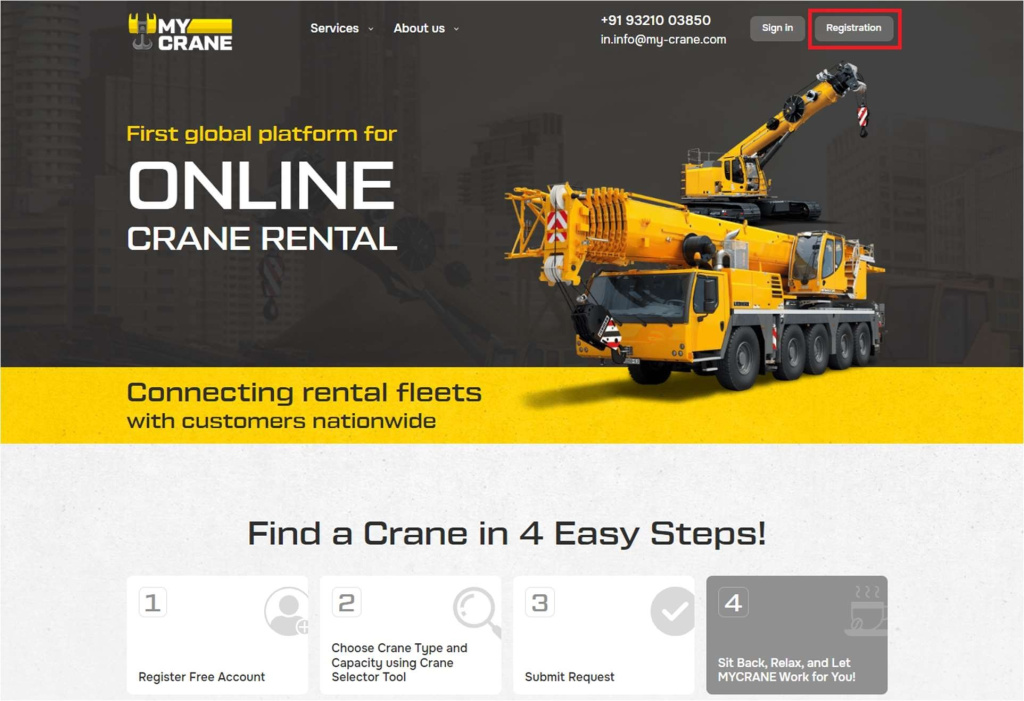
Visit in.my-crane.com and click in the top right corner on register (see Figure 1). A pop-up will open, enter the required information and agree with the user agreement to use the website.
2.2 User registration form
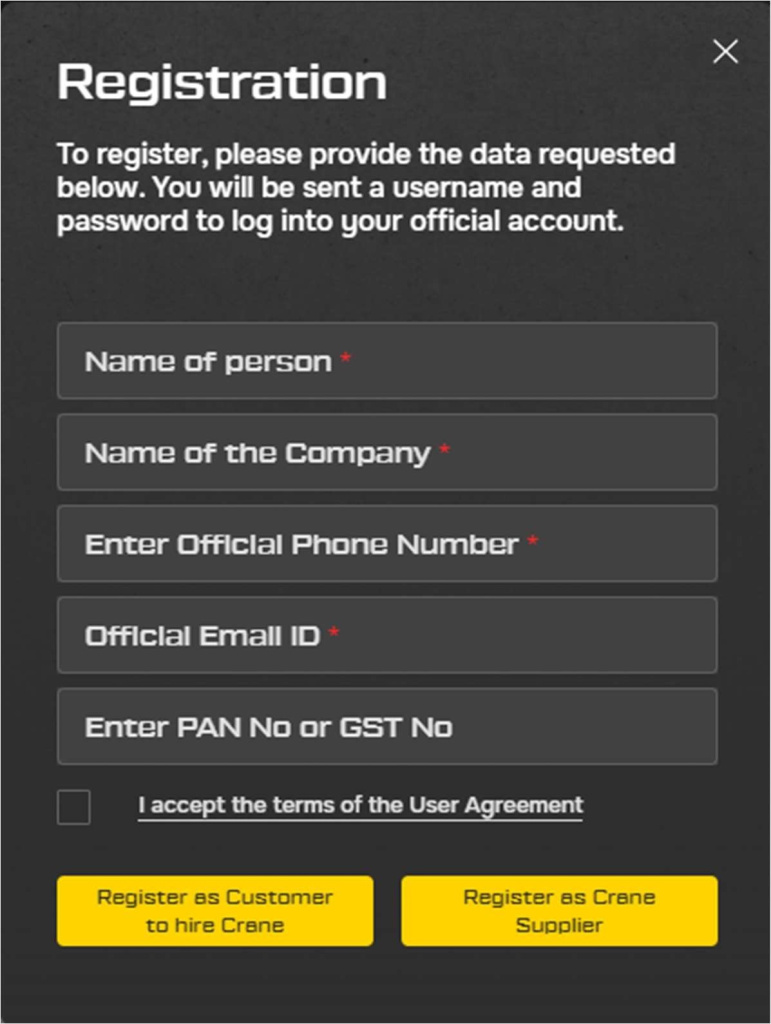
After clicking on the registration link, the pop-up with the registration form will open (see Figure 2). You can indicate if you’re looking for a crane or if you want to supply a crane. If you select the option: ’Register as Customer to hire crane’ you will be able to request quotes from suppliers. If you select ’Register as Crane Supplier’ you will be able to add equipment and quote on jobs.
For Customers, the first option is the option to select.
2.3 Validation of your account
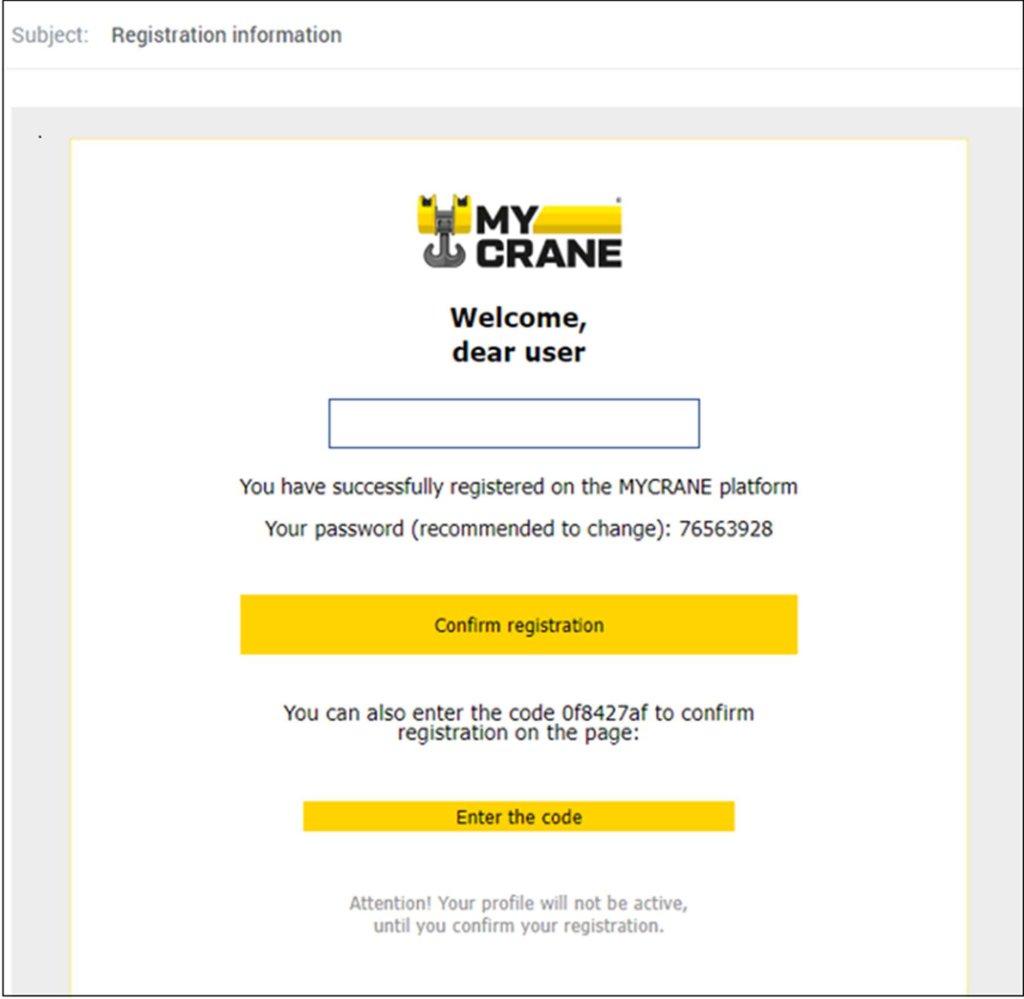
After registration you will receive an email with a verification link & your password. The first step is to validate your e-mail address (and account) by clicking on the ‘Confirm Registration’ button.
After your account is validated, you can now login. The Login ID is your provided E mail ID and Password is sent on your provided E mail.
3. Summary in 6 Steps
This section is for people that don’t like to read the manual. It gives a short summary of the steps required to create your first inquiry and accept the offer of the crane suppliers.
Step 1: When clicking on ‘Hire crane’ on the Crane Rental Dashboard, the Crane Inquiry form will open. You can include all your Job details, required information about the crane, the Responsibility Matrix details and contractual requirements.
Step 2: MYCRANE will share your inquiry with our database of Crane Suppliers. Your request is shared with companies that have matching available equipment in the location of your project. No action is required from your end. Crane Suppliers will quote on the job within 1-5 business days.
Step 3: After you have received quotes from Crane Suppliers, you will select the best option based on price and MYCRANE’s company rating. This allows you to find the best company to execute your project successfully.
Step 4: When you have selected your preferred Crane Supplier, you will send a work order to the sleeted supplier or contractor. This ensures that you can use your standard company T&C’s, payment terms and insurance details.
Step 5: The job will be executed according to the contract.
Step 6: The Crane Company will send you an invoice according to your agreed payment schedule, and you are responsible to pay the Crane Supplier directly.
4. Crane Rental Dashboard
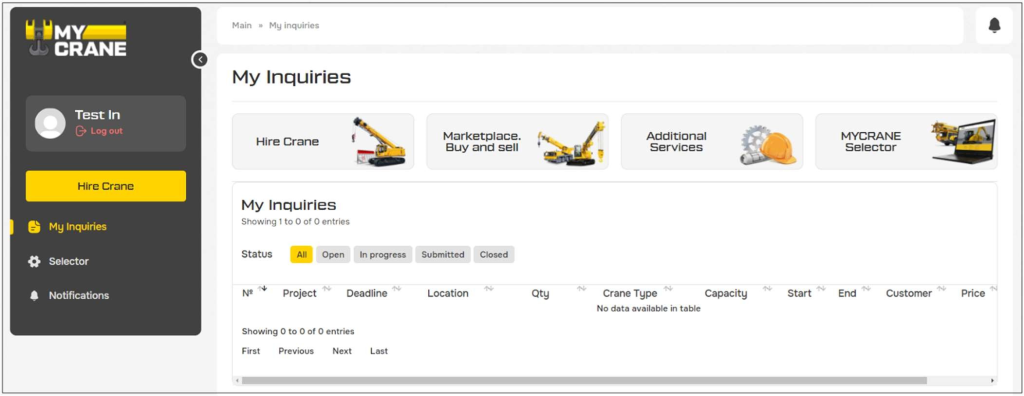
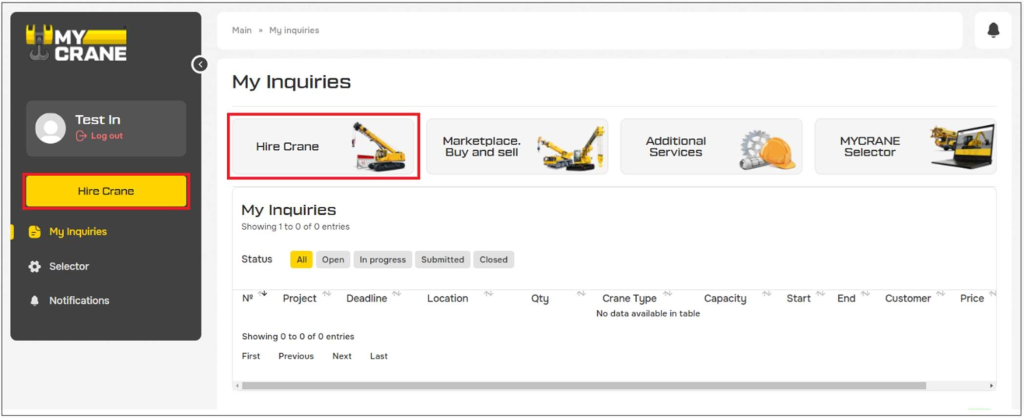
After your first login, the Crane Rental Dashboard will open. (see Figure 4). This is the main screen that will be used throughout the manual. When you add crane inquiries they will show up in this section as well.
There are several options available:
1. Profile section: Manage your profile & account settings.
2. Log out: Securely log-out of your account.
3. Hire crane: Open a new inquiry form to request a crane.
4. My Inquiries: Overview of your ongoing projects.
5. Notifications: Notifications about inquiries (new bids).
6. Selector: Our free-to-use Crane Selector to size the crane capacity.
5. Request Your First Inquiries
5.1 Order lifting services OR order additional services
Click on the ‘Hire crane’ button.
To add your first inquiry, click on Hire crane to start
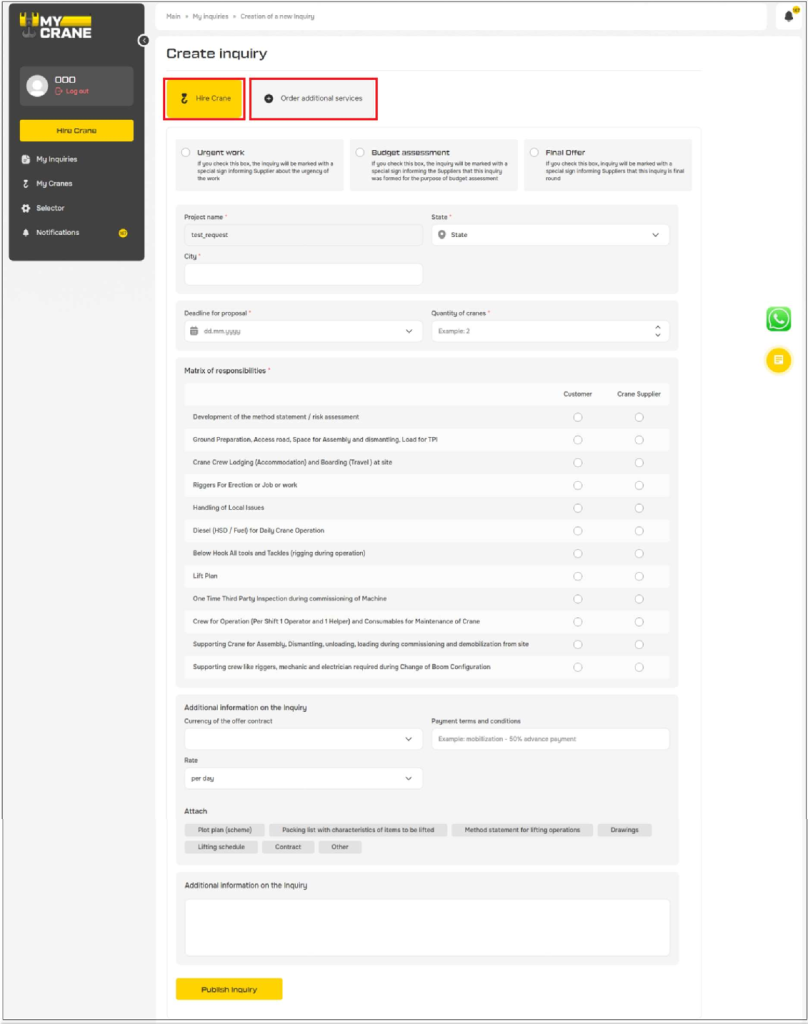
You have two options in this form (see Figure 6).
Hire crane: In this screen you can complete the Crane Inquiry form. If you want to order a crane or receive a budget estimation you should select this option.
Order additional services: If you want to use MYCRANE’s engineering services, method statements, transportation of the crane or request a site visit, this is the form you’ll use.
5.2 General Job Information
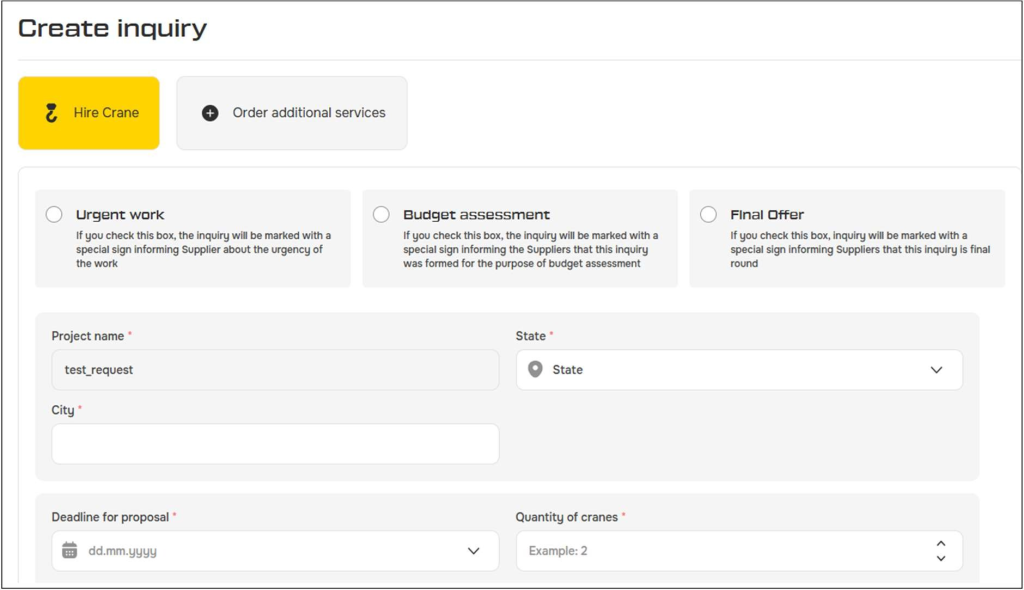
In the first step, you will enter the general Job information (Figure 7).
There are 3 different options that you could select:
Urgent work: The suppliers will receive a special notification indicating this is an urgent request and you want to receive quotes immediately.
Budget assessment: If you’re in the bid phase and want to receive a budgetary quote, please choose this option. If you have the work on-hand and are ready to order the crane, don’t choose this option.
Final offer: If you check this box, inquiry will be marked with a special sign informing Suppliers that this inquiry is final round.
The required fields in this first section are: project name, contact name and project location.
Project Name + Contact name: Indicate the name of the project.
State: Select the state where the project will be executed.
Job Nearest Location: Add further details of the project location. You can use the map functionality.
5.3 Proposal deadline, quantity of cranes and job duration
In the next step you include the deadline for the proposal. This is the latest date crane suppliers can add their proposal.
The number of cranes is included in the quantity of cranes field. If you need 1 crane you select 1, if you need 2 cranes you select 2, etc.
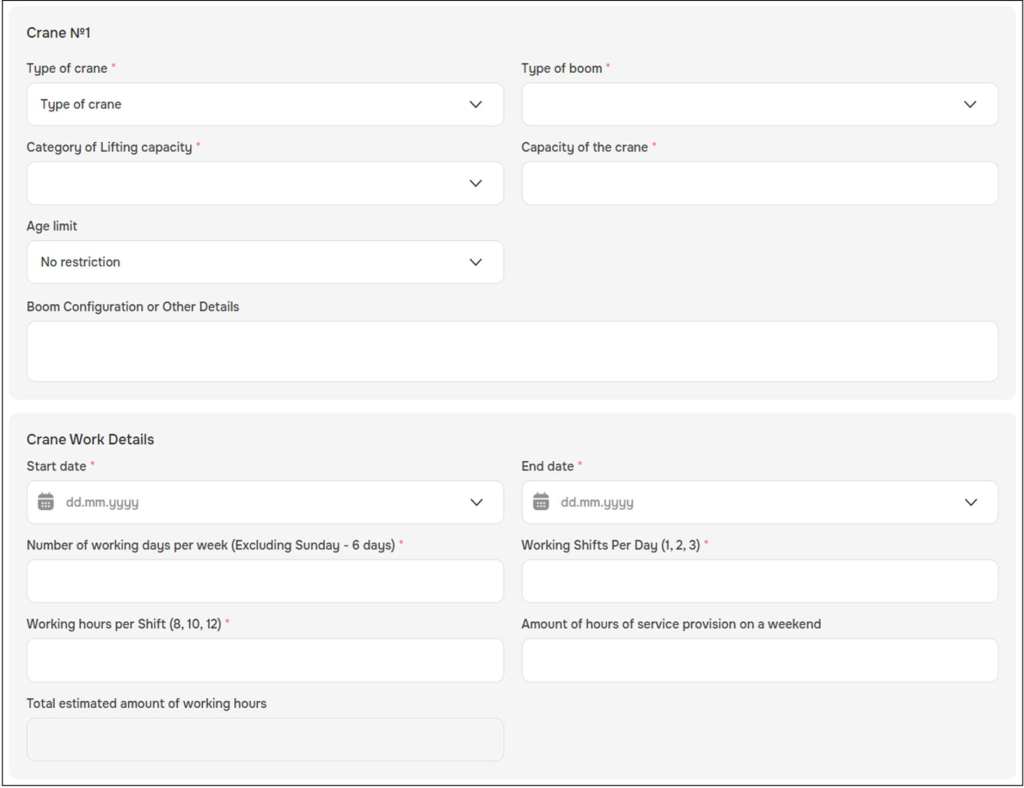
If you know the capacity of the crane required for your project you can enter the requirements here. If you don’t know what crane is required, you can use the MYCRANE Selector to find the crane with the right capacity. The MYCRANE Selector can be found in the menu on the left-hand side of the page.
If you have questions please contact MYCRANE’s support to get assistance in finding the right crane for your job.
Type of crane: Select the right type of crane.
Lifting Capacity Range: Select the right capacity range of the crane. MYCRANE will contact only the suppliers within this Lifting Capacity Range.
Crane Capacity: Enter the capacity crane you’re looking for. Please note this the crane capacity. If you are unsure, contact MYCRANE support to guide you through the process.
Crane Manufacturer & model: If you have a preference for a certain crane manufacturer please select that Manufacturer & Model here.
Boom configuration or other details: If you know the exact configuration enter this in the field.
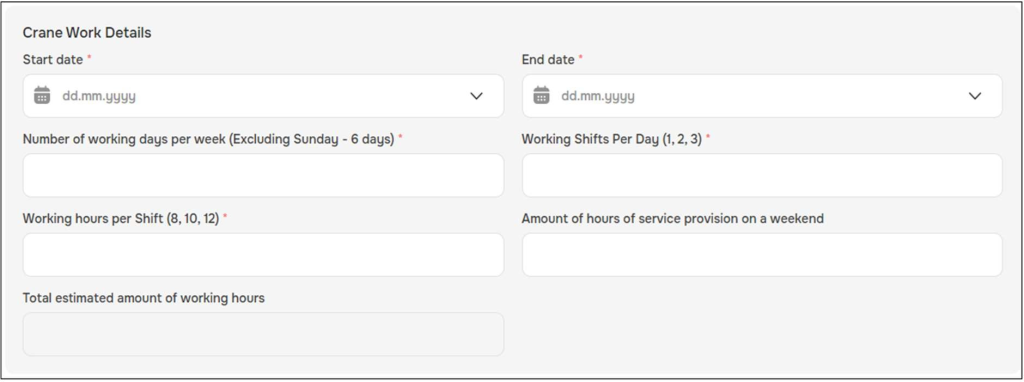
Start & End date: Select the right Start and End date for the project. Make sure these values are realistic. MYCRANE assists the customer in preparing their quotes based on the input of these fields.
Crane work details: Be as precise as possible with the estimation of the number of working days per week, number of shifts per day and the number of working hours per shift.
Based on the start & end date, and the estimation of the number of working hours, a Total Estimated number of working hours is calculated. Please check this number.
If you anticipate a standby period, please indicate the start and end date of this standby period. We calculate the correct number of estimated standby hours. Usually crane companies charge a lower standby rate compared to the rate when the equipment is operational.
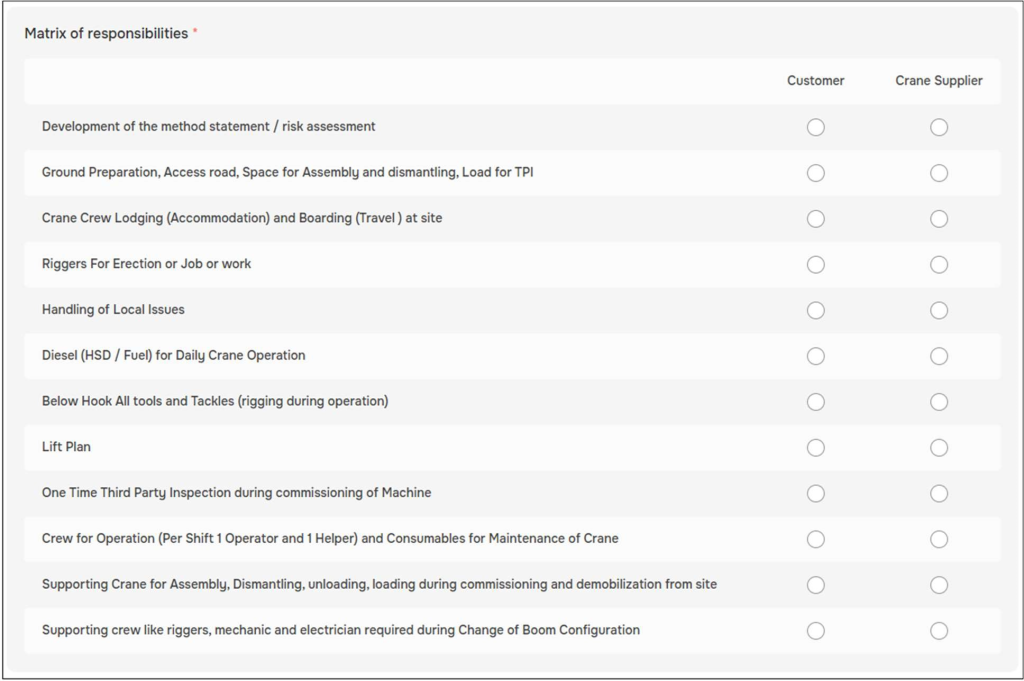
5.4 Responsibility Matrix
The Matrix of responsibility is used to define the scope of the provided services. Please indicate who will be responsible for each of the options listed in the table.
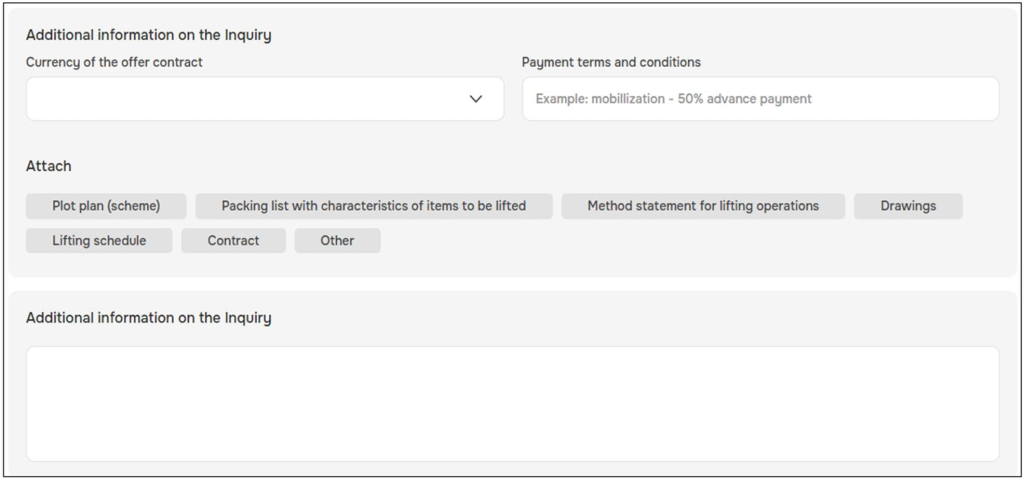
5.5 Additional information on the inquiry
You have the opportunity to upload technical documentation including a plot plan, drawings and other technical specifications here. Please include the weight of the load to be lifted, including the radius and lifting height. The Supplier uses this information to validate if the proposed crane is the best option for the job. In this section you can include all of your contractual requirements. Indicate the preferred currency, payment terms & conditions here. You also have the possibility to upload documents such as T&C’s or insurance requirements.
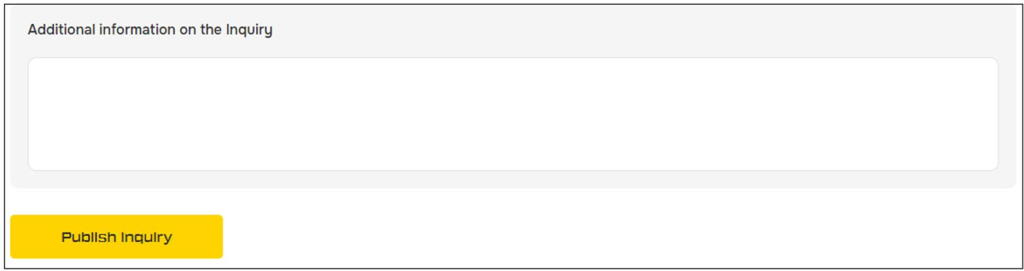
5.6 Publish inquiry
In the last comment box, you can include any additional comments. If you are ready to rent the crane, please publish.
MYCRANE will notify the suppliers that are active in your selected region and have the required equipment. Within a business day we will validate the request, make sure all potential questions are answered and help you to find the best option.
Within 1-5 business days you will receive an overview of different quotes in your account. No further action is required.
6. Track the Progress of Your Inquiry
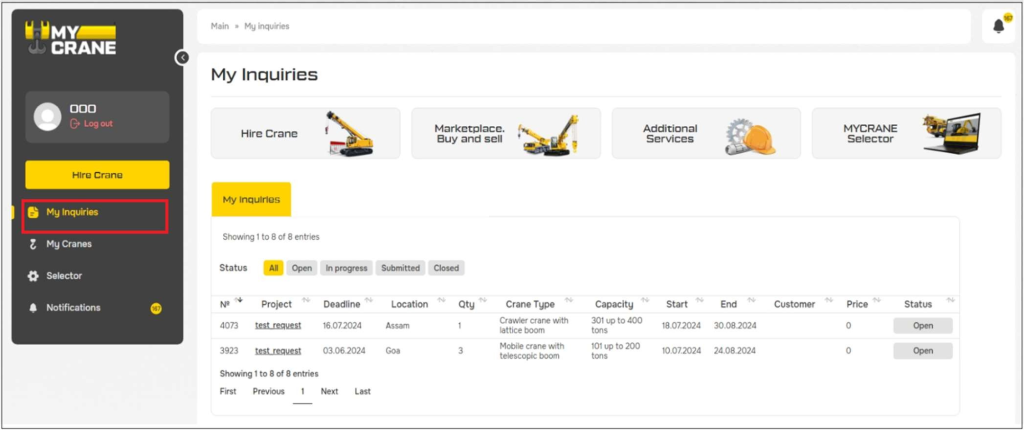
We will keep you notified automatically by email about new quotes received from suppliers. If you want to check this manually, you can go to your Crane Rental Dashboard and click on ‘My Inquiries’.
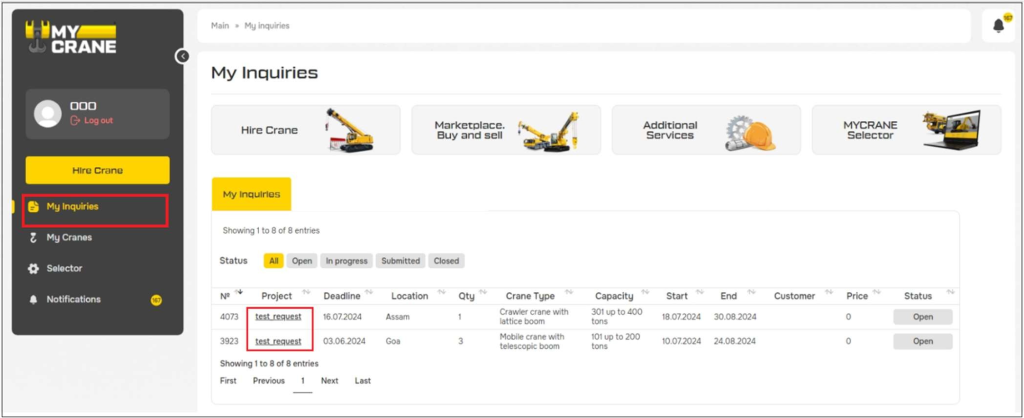
An overview of all your inquiries will show up here (see 4). When you select your most recent project, you can see all of the inquiry details.
Clicking on the Project Name will open your inquiry form, including the different supplier quotes.
7. How to View the Different Quotations
To get access to the proposals, go to My Inquiries -> My Inquiries -> The name of your inquiry (see Figure 13).
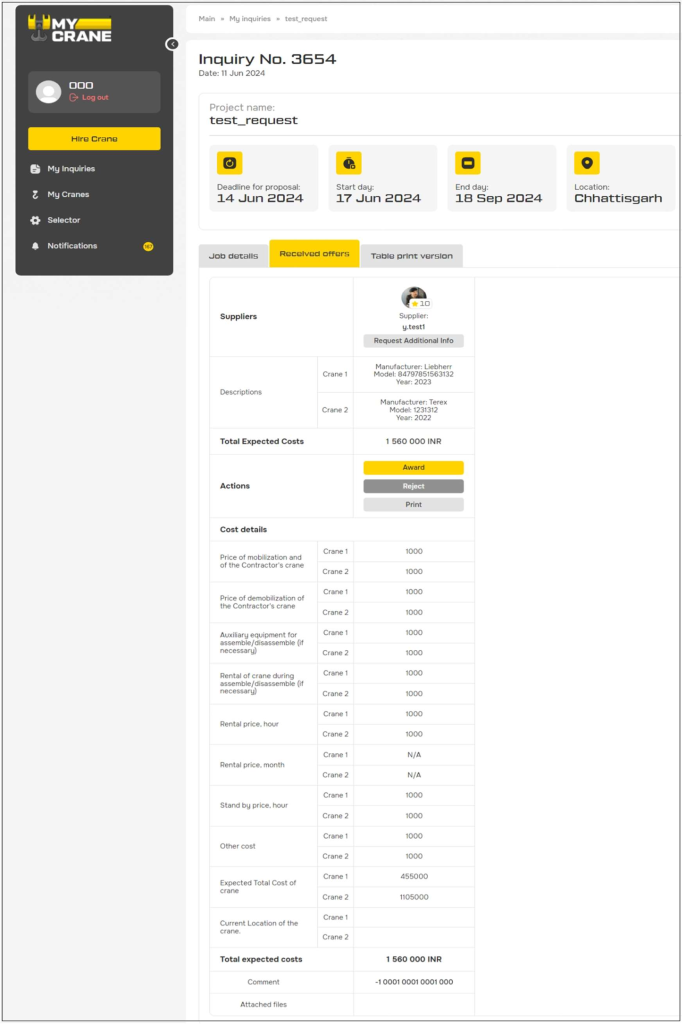
On the received offers tab, you will see the table with quotes for your specific project (see Error! Reference source not found.)
8. Select the Crane Supplier and Confirm
On the Received offers tab, check the previous section of this manual, select the yellow button: ‘Award’ is shown (see Error! Reference source not found.). Clicking on this button will open a new screen to confirm the selection of the crane suppliers.
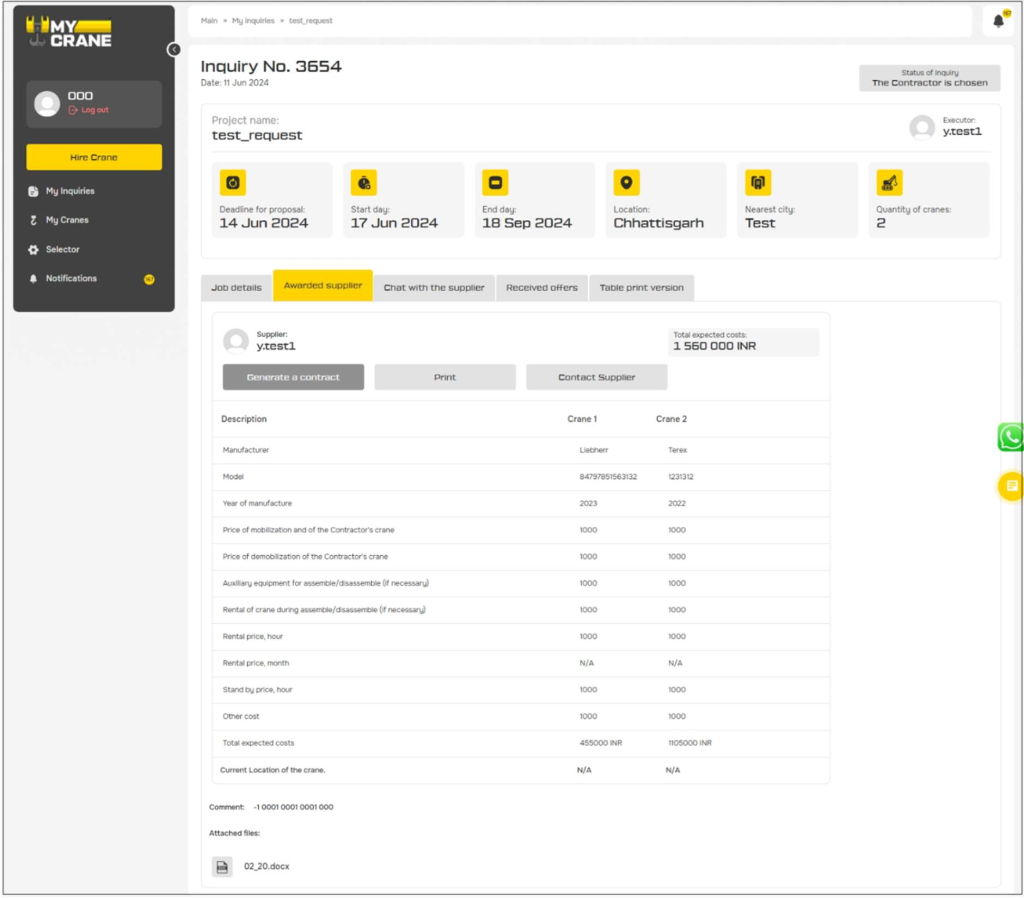
A new screen (Figure 15) will open. The first thing you’ll notice is that the supplier has not accepted the task yet. After you have chosen the crane supplier you prefer, they will be notified to confirm the job from their end.
In the overview screen you will be able to share documents and messages with the customer directly. This will help to keep all documents in a centralized location on your portal.
9. Closing of the Contract, Terms and Conditions
After selecting the Crane Supplier that you want to work with, a direct contract between the Customer and Crane Supplier will be created. This ensures that you can use your standard Terms & Conditions, Insurance Requirements and Payment Terms.
MYCRANE Support will guide you through this process and answer any question that may arise,
10. MYCRANE Selector
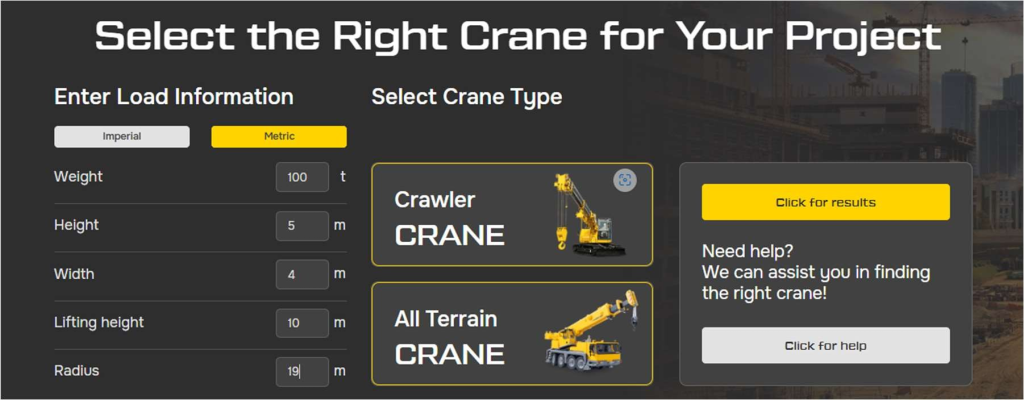
The MYCRANE Selector is an independent free-to-use crane selection tool. This helps you get an accurate idea what crane capacity is required for your project.
There are 2 main types of equipment included: Crawler Cranes & Mobile Cranes. Multiple makes of each are included in our selector. We are continuously adding new makes and models to our database as well (Liebherr, Demag, Tadano, Grove, XCMG, Sany, etc.).
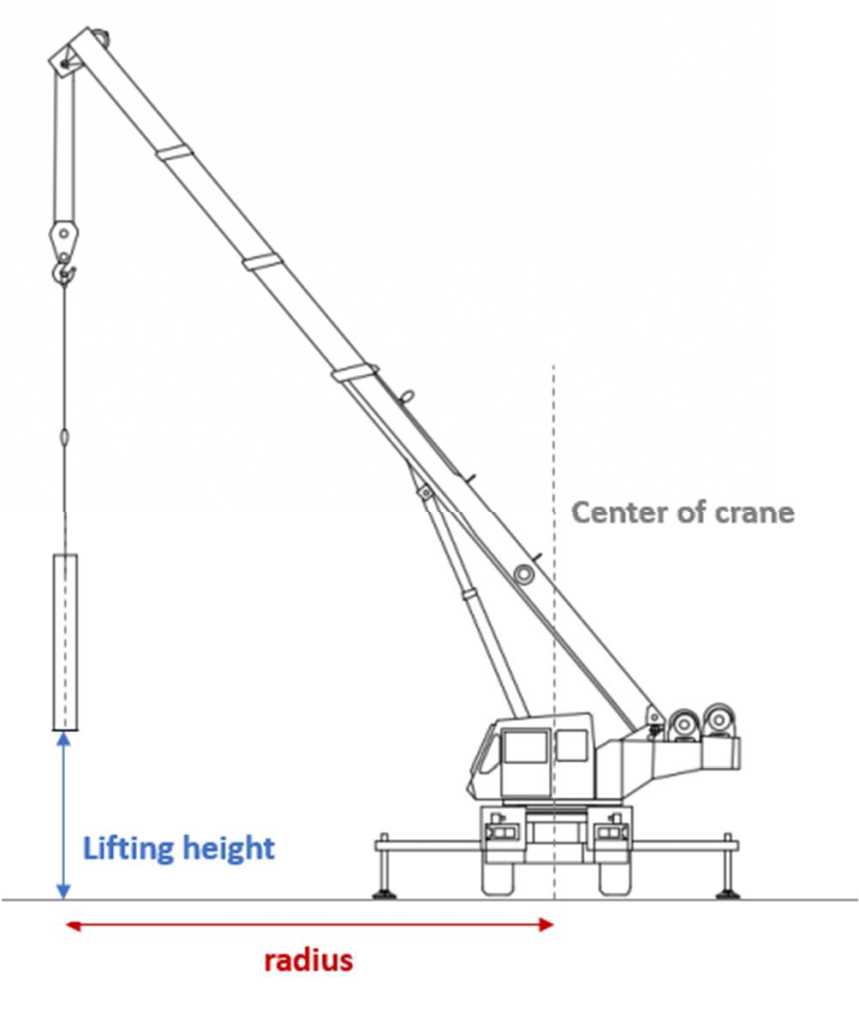
The information you enter here is what will be used to adequately size your crane. Figure shows the definition of the radius and lifting height, 2 parameters you will want to include.
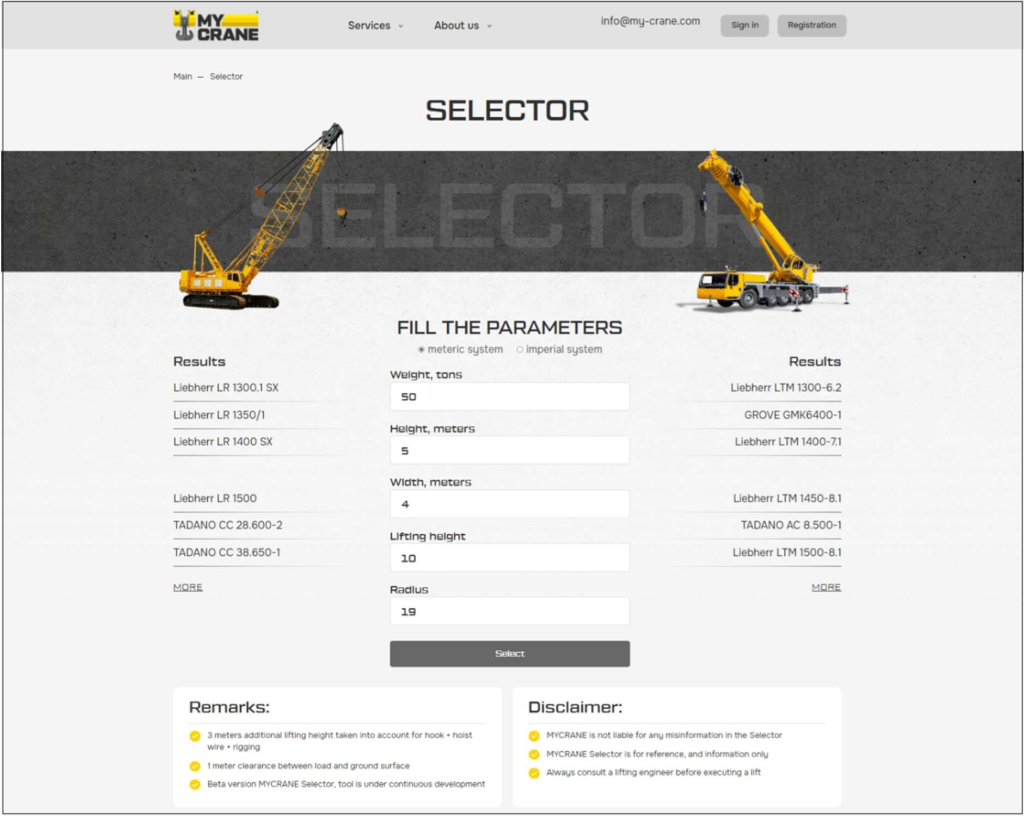
The result of the Crane Selector is shown in Figure 17. On the left side of the screen the different Crawler Crane options are shown. On the right side, the Mobile Crane options are shown.
We take a safety margin of 3-meter, into account for the lifting height. This includes hook + hoist clearance and rigging. There is 1-meter, clearance included between the ground surface and bottom of the load. All of our load charts are utilized up to 100%.
MYCRANE can provide you with a method statement/lift drawing with our Engineering Services if needed. Please contact MYCRANE support to learn more about this option.
Coming soon
The MYCRANE platform is dynamically developing and is actively opening its representative offices in different countries.Please choose your country below and proceed with registration process. If you do not see your country below, please email us at info@my-crane.com to get more information. Subscribe
a) MYCRANE LLC, a company organized and existing under the laws of the United States, having its registered address at Texas, USA (hereinafter referred to as the "Organization") offers the Internet user (hereinafter referred to as the User), who is either an individual personally, or an individual authorized by one or another legal entity, to use the services of the site us.my-crane.com (hereinafter referred to as the " Website ") on the terms set forth in this User Agreement (hereinafter referred to as the "Agreement"). The Agreement comes into force from the moment the User expresses consent to its terms in the manner provided for in clause 1 (d) of the Agreement.
b) The Organization offers Users access to a wide range of Website services, including means of navigation, communication, search, placement and storage of various kinds of information and materials (content), personalization of content, transactions, etc. All currently existing services of the Organization's Website, the terms of use of which refer to this Agreement, as well as any development of them and/or the addition of new ones is the subject of this Agreement.
с) The use of the Website services is governed by this Agreement, as well as the following documents, which are an integral part of this agreement: the Privacy Policy, as well as the terms of use of individual Website services. The Agreement may be amended by the Organization without any special notice, the new version of the Agreement comes into force from the moment it is posted on the Internet at the address specified in this paragraph, unless otherwise provided by the new version of the Agreement. The current version of the PS is always on the page at.
d) Starting to use the Site, any service of the Website / its individual functions, or going through the registration procedure on the Site, the User is considered to have accepted the terms of the Agreement in full, without any reservations and exceptions. If the User does not agree with any of the provisions of the Agreement, the User does not have the right to use the services of the Website. If the Organization has made any changes to the Agreement in accordance with paragraph 1 (c) of the Agreement, with which the User does not agree, he is obliged to stop using the services of the Organization's Website.
2. User Registration. User Account
a) In order to use some of the services of the Organization's Website or some of the individual functions of the services of the Website, the User must complete the registration procedure, as a result of which a unique account will be created for the User.
b) In order to register, the User undertakes to provide reliable and complete information about himself and/or the legal entity he represents on the issues proposed in the registration form, and to keep this information up to date. If the User provides incorrect information or the Organization has reason to believe that the information provided by the User is incomplete or unreliable, the Organization has the right, at its discretion, to block or delete the User's account and refuse the User to use the services of the Organization's Website (or their individual functions).
When registering, the User can upload an image for the account (avatar). The account image may accompany the materials published by the User as part of the use of the services of the Organization's Website. If the User's image is used as an account image, the User understands and agrees that the Organization has the right to publish and further use the User's image for use in the Organization's services, advertising products, corporate blogs and accounts of the Organization on third-party resources.
c) Account Confirmation
Ⅰ. The Organization reserves the right at any time to require the User to confirm the data specified during registration in the User account on the services of the Organization's Website and containing information about the User, as well as other information related to the use of the Organization's services available to the User after authorization using the User's login and password on the services of the Organization's Website.
Ⅱ. For the purposes of verifying the data declared by the User, the Organization has the right to request supporting documents (in particular, documents certifying legal capacity / identity), including those provided for by the registration form, the failure of which, at the discretion of the Organization, may be equated to providing false information and entail the consequences provided for in clause 2 (b) of the Agreement. If the User's data specified in the documents provided by him does not correspond to the data specified during registration, as well as in the case when the data specified during registration does not allow identifying the User, the Organization has the right to deny the User access to the account and use of the Organization's services.
d) The User's personal information defined by the Privacy Policy and contained in the User's account is stored and processed by the Organization in accordance with the terms of the Privacy Policy (us.my-crane.com).
e) Means to access the User account.
Ⅰ. When registering, the User independently chooses a login (a unique symbolic name of the User account) and a password to access the account. The organization has the right to prohibit the use of certain usernames, as well as to set requirements for login and password (length, allowed characters, etc.).
Ⅱ. After the User logs in to the account, the account data can be automatically saved in the device browser until the User completes work under his account and does not require additional input of access means to the account each time the Organization's services are used. The User account data automatically saved in the device browser can be used to access the services of the Organization's Website, including services, websites, applications and other software products of the Organization and other persons, except as specified in clause 2 (h,Ⅱ) of this Agreement.
f) The User is solely responsible for the security (including resistance to guessing) of the means chosen by him to access the account, and also independently ensures their confidentiality. The User is solely responsible for all actions (as well as their consequences) within or using the services of the Organization's Website under the User's account, including cases of voluntary transfer by the User of data for access to the User's account to third parties on any terms (including contracts or agreements). At the same time, all actions within or using the services of the Organization under the User account are considered to be performed by the User himself, except in cases when the User, in accordance with the procedure provided for in clause 2 (g), notified the Organization of unauthorized access to the services of the Organization using the User account and /or of any violation (suspicion of violation) of the confidentiality of their means of access to the account (mobile phone number, password or two-factor authentication means).
g) The User is obliged to immediately notify the Organization of any case of unauthorized (not authorized by the User) access to the Organization's services using the User account and / or of any violation (suspicion of violation) of the confidentiality of their means of access to the account. For security purposes, the User is obliged to independently perform a safe shutdown under his account (the "Exit" button) at the end of each session of work with the Organization's services. The Organization is not responsible for the possible loss or damage of data, as well as other consequences of any nature that may occur due to the User's violation of the provisions of this part of the Agreement.
h) The User's use of his account.
Ⅰ. The User does not have the right to reproduce, repeat and copy, sell and resell, as well as use for any commercial purposes any parts of the Organization's services (including content available to the User through the services), or access to them, except when the User has received such permission from the Organization, or when it is expressly provided by any service of the Site.
Ⅱ. Certain categories of User accounts may restrict or prohibit the use of certain services of the Organization's Website or their individual functions if this is provided for during registration or in the terms of use of a particular service.
i) Termination of registration. The organization has the right to block or delete the User account and deny access using any account to certain services of the Organization, and to delete any content without giving reasons including in case the User violates the terms and conditions of this Agreement or the terms of other documents specified in clause 1 (c) Agreement, and the failure of the service, in particular:
Ⅰ. if the User does not use their account in over 6 months.
j) Deleting a User account.
Ⅰ. The User has the right at any time to delete his account on all the services of the Organization or, if there is a corresponding function, to terminate it in relation to some of them.
Ⅱ. The account is deleted by the Organization in the following order:
• the account is automatically blocked for a period of one month, during which the User's access to his account becomes impossible, while the content posted using such an account can be deleted;
• if the User's account is restored by the User within the above period, access to the User's account will be restored, however, the content (applications, documents, records, comments, etc.) posted with its help may not be subject to restoration;
• if the User's account is not restored within the above period, all content posted using it will be automatically deleted, and the login will be available for use by other users. From this moment on, it is impossible to restore the account, any information related to it, as well as access to the Organization's services using this account.
Ⅲ. The procedure given in paragraphs 2(j,Ⅱ) of the Agreement (except for the availability of the login for use by other users) is also applicable to the prohibition of access using any account to certain services of the Site.
3. General provisions on use and storage.
a) The Organization has the right to set restrictions on the use of the services for all Users, or for certain categories of Users (depending on the User's place of residence, the language in which the service is provided, etc.), including: the presence/absence of certain functions of the Site service, the shelf life of documents and messages in the Site service, any other content, the maximum number of documents and messages that can be sent or received by one registered user, the maximum size of a message, document or disk space, the maximum number of requests to the Site service for a specified period of time, the maximum storage period of content, special parameters of downloadable content, etc. An Organization can prohibit automatic access to the Site's services, as well as stop accepting any information generated automatically (for example, spam).
b) The Organization has the right to send informational messages to its users. Using the Organization's services, the User also agrees to receive advertising messages. The user has the right to refuse to receive advertising messages by using the appropriate functionality of the service within which or in connection with which the user received advertising messages.
The User agrees with the Organization to notify other Users of the Service about the User's public actions, including the posting of new publications, actions performed by him in relation to the Content of other Users, as well as other activities performed by him within the Service.
c) In order to improve the quality of the Site's services, the Organization and /or the persons involved in conducting the survey have the right to collect opinions and feedback from Users on various issues by sending an information message when the User next visits the service or by contacting the contact details specified by the User in the account (via phone calls or emails). The collected opinions and reviews can be used to generate statistical data that can be used in the services of the Organization's Website. The reviews provided by the User during the survey can also be published by the Organization in the services of the Organization's Website, both with the User's name (login) and without it. When leaving feedback, the User undertakes to be guided by the requirements of this Agreement, including the requirements set forth in clause 5 of this Agreement.
4. User Content
a) The User is solely responsible for the compliance of the content posted by the User (including documents, information, data, images, etc.) with the requirements of the current legislation, including liability to third parties in cases when the User posts this or that content (including documents, information, data, images, etc.) or the content of the content violates the rights and legitimate interests of third parties, including the personal non-property rights of the authors, other intellectual rights of third parties, and/or encroaches on the intangible benefits belonging to them.
b) The User acknowledges and agrees that the Organization is not obliged to view any kind of content posted and /or distributed by the User through the services of the Organization's Website, as well as that the Organization has the right (but not the obligation) at its sole discretion, refuse to post and/or distribute content to the User or remove any content that is available through the services of the Organization's Website. The User understands and agrees that he must independently assess all risks associated with the use of the content, including assessing the reliability, completeness or usefulness of this content.
c) The User understands and agrees that the technology of the Site services may require copying (reproduction) of the User's content by the Organization, as well as processing it by the Organization to meet the technical requirements of a particular service.
5. Terms of use of the Organization's Website services
a) The User is solely responsible to third parties for his actions related to the use of the Website Service, including if such actions lead to violation of the rights and legitimate interests of third parties, as well as for compliance with the law when using the Website Service.
b) When using the Organization's services, the User does not have the right:
Ⅰ. upload, send, transmit or in any other way post and/or distribute content that is illegal, malicious, defamatory, offends morality, demonstrates (or is propaganda) of violence and cruelty, violates intellectual property rights, promotes hatred and/or discrimination of people on racial, ethnic, sexual, religious, social grounds, contains insults against any persons or organizations, contains elements (or is propaganda) of pornography, eroticism, it is an advertisement (or is propaganda) of sexual services (including under the guise of other services), explains the procedure for the manufacture, use or other use of narcotic substances or their analogues, explosives or other weapons;
Ⅱ. violate the rights of third parties, including minors, and/or harm them in any form;
Ⅲ. impersonate another person or a representative of an organization and/or community without sufficient rights, including employees of the Organization, moderators of forums, the owner of the Site, as well as use any other forms and methods of illegal representation of other persons on the network, as well as mislead users or the Organization about the properties and characteristics of any subjects or objects;
Ⅳ. upload, send, transmit or in any other way post and/or distribute content, in the absence of rights to such actions under the law or any contractual relationship;
Ⅴ. upload, send, transmit or in any other way post and/or distribute advertising information, spam, lists of other people's email addresses, pyramid schemes, multilevel (network) marketing (MLM), Internet earnings and e-mail business systems, "letters of happiness", as well as use the services of the Organization's Website to participate in these events, or use the services of the Organization's Website solely to redirect users to pages of other domains;
Ⅵ. upload, send, transmit or in any other way post and/or distribute any materials containing viruses or other computer codes, files or programs designed to disrupt, destroy or limit the functionality of any computer or telecommunications equipment or programs for unauthorized access, as well as serial numbers to commercial software products and programs for their generation, logins, passwords and other means for obtaining unauthorized access to paid resources on the Internet, as well as posting links to the above information;
Ⅶ. unauthorized collection and storage of personal data of other persons;
Ⅷ. disrupt the normal operation of the websites and services of the Organization's Website;
Ⅸ. facilitate actions aimed at violating the restrictions and prohibitions imposed by the Agreement;
Ⅹ. otherwise violate the norms of legislation, including the norms of international law.
6. Exclusive rights to the content of the Organization's Website services and content
a) All objects accessible through the services of the Organization's Website, including design elements, text, graphics, illustrations, videos, computer programs, databases, music, sounds and other objects (hereinafter referred to as the content of the services), as well as any content posted on the services of the Organization, are objects of the exclusive rights of the Organization, Users and other copyright holders.
b) The use of the content, as well as any other elements of the Site services, is possible only within the framework of the functionality offered by this or that Site service. No elements of the content of the services of the Organization's Website, as well as any content posted on the services of the Organization's Website, may be used in any other way without the prior permission of the copyright holder. Usage means, among other things: reproduction, copying, processing, distribution on any basis, display in a frame, etc. Exceptions are cases directly provided for by the legislation of the United States or the terms of use of a particular service of the Organization's Website.
The User's use of elements of the content of the services, as well as any content for personal non-commercial use, is allowed provided that all copyright, related rights, trademarks, other notices of authorship are preserved, the name (or pseudonym) of the author/ name of the copyright holder is preserved unchanged, and the corresponding object is preserved unchanged. Exceptions are cases directly provided for by the legislation of the United States or user agreements of a particular service of the Organization's Website.
7. Third-party websites and content
a) The services of the Organization's Website may contain links to other sites on the Internet (third-party sites). These third parties and their content are not checked by the Organization for compliance with certain requirements (reliability, completeness, legality, etc.). The Organization is not responsible for any information, materials posted on third-party sites that the User accesses using the Site's services, including for any opinions or statements expressed on third-party sites, advertising, etc., as well as for the availability of such sites or content and the consequences of their use by the User.
b) A link (in any form) to any website, product, service, any commercial or non-commercial information posted on the Website does not constitute an endorsement or recommendation of these products (services, activities) on the part of the Organization, except in cases where this is explicitly indicated on the resources of the Organization.
8. Advertising on the services of the Organization's Website
a) The Organization is responsible for advertising placed by it on the services of the Organization's Website, within the limits established by the legislation of the United States.
b) The User agrees to receive information about events, conferences, trainings and other information from the Organization to the email address specified during registration.
9. No warranty, limitation of liability
a) The User uses the services of the Organization's Website at his own risk. The services are provided "as is". The Organization does not assume any responsibility, including for the compliance of the Site's Services with the User's goals;
b) The Organization does not guarantee that: the Site services meet /will meet the User's requirements; the services will be provided continuously, quickly, reliably and without errors; the results that can be obtained using the services will be accurate and reliable and can be used for any purpose or in any capacity (for example, to establish and/or confirm any facts); the quality of any product, service, information, etc. obtained using the Site services will meet the User's expectations;
c) Any information and / or materials (including downloadable software, letters, any instructions and guides to action, etc.) that the User gets access to using the services of the Organization's Website, the User can use at his own risk and is solely responsible for the possible consequences of using the specified information and / or materials, including for the damage that this may cause to the User's computer or third parties, for data loss or any other harm;
d) The Organization is not responsible for any kind of losses that occurred as a result of the User's use of the services of the Organization's Website or individual parts / functions of the services of the Organization's Website.
10. Other provisions
a) This Agreement is an agreement between the User and the Organization regarding the use of the services of the Organization's Website and replaces all previous agreements between the User and the Organization.
b) This Agreement is governed by and interpreted in accordance with the laws of the United States. Issues not regulated by this Agreement are subject to resolution in accordance with the legislation of the United States. All possible disputes arising from the relations regulated by this Agreement shall be resolved in accordance with the procedure established by the current legislation of the United States. Throughout the text of this Agreement, unless explicitly stated otherwise, the term "legislation" means the legislation of the United States.
c) If, for one reason or another, one or more provisions of this Agreement are declared invalid or unenforceable, this does not affect the validity or applicability of the remaining provisions of the Agreement.
d) Inaction on the part of the Organization in case of violation by the User or other users of the provisions of the Agreements does not deprive the Organization of the right to take appropriate actions to protect its interests later, and also does not mean that the Organization renounces its rights in case of subsequent similar or similar violations.
Personal Data Privacy Policy
This Privacy Policy of Personal Data (hereinafter referred to as the Privacy Policy) applies to all information that ___________________. (hereinafter referred to as the Site Administration), represented by _______________, Mr. _____________ requests on the Website https://qa.my-crane.com (hereinafter referred to as the Site, Website) may receive information about the User during the use of the Site, programs and products of the Site.
Preamble
Brief description of the company and motivation to comply with data protection.
We are committed to safeguarding the privacy of [our website visitors, service users, individual customers and customer personnel.
This policy applies where we are acting as a data controller with respect to the personal data of such persons; in other words, where we determine the purposes and means of the processing of that personal data.
Each Individual has the right to the protection of the Personal Data thereof that shall be processed only within the framework of transparency, honesty, and respect of human dignity, and acceptable practices according to provisions hereof.
Our website incorporates privacy controls which affect how we will process your personal data. By using the privacy controls, you can [specify whether you would like to receive direct marketing communications and limit the collection, sharing and publication of your personal data].
We use cookies on our website. Insofar as those cookies are not strictly necessary for the provision of our website and services, we will ask you to consent to our use of cookies when you first visit our website.
The Site Administration shall process Personal Data only after obtaining the consent of the Individual, unless data processing is necessary to achieve a Lawful Purpose for the Site Administration or the other recipient of such data.
GOAL
The goal of the data protection policy is to depict the legal data protection aspects in one summarising document. It can also be used as the basis for statutory data protection inspections, e.g. by the customer within the scope of commissioned processing. This is not only to ensure compliance with the European General Data Protection Regulation (GDPR) and Data protection Act (DPA) 2018 but also to provide proof of compliance.
The reason for the policy:
• complying with the law
• following good practice
• protecting clients, staff and other individuals
• protecting the organization
2.DEFINITION OF TERMS
The following terms are used in this Privacy Policy:
"Site Administration (hereinafter referred to as the Site Administration)" – authorized employees of the site management, acting on behalf of the Site owners, who organize and (or) process personal data, as well as determine the purposes of personal data processing, the composition of personal data to be processed, actions (operations) performed with personal data.
"Personal data" means any information related directly or indirectly to a specific or identifiable individual (the subject of personal data).
"Personal data processing" means any action (operation) or a set of actions (operations) performed with or without the use of automation tools with personal data, including collection, recording, systematization, accumulation, storage, clarification (updating, modification), extraction, use, transfer (distribution, provision, access), depersonalization, blocking, deletion, destruction of personal data.
"Confidentiality of personal data" is a mandatory requirement for the Operator or other person who has access to personal data to prevent their dissemination without the consent of the personal data subject or the presence of other legal grounds.
"Site User (hereinafter referred to as the User)" – a person who has access to the Site via the Internet, including an individual personally, or an individual authorized by a particular legal entity.
"Cookies" — a small piece of data sent by the web server and stored on the user's computer, which the web client or web browser sends to the web server each time in an HTTP request when trying to open the page of the corresponding Site.
"IP address" is a unique network address of a node in a computer network built using the IP protocol.
2. GENERAL PROVISIONS
(a) The User's use of the Site means acceptance of this Privacy Policy and the terms of processing of the User's personal data.
(b) In case of disagreement with the terms of the Privacy Policy, the User must stop using the Site.
(c) This Privacy Policy applies only to this Website. The Site does not control and is not responsible for third-party sites to which the User can click on the links available on the Site.
(d) The Site Administration does not verify the accuracy of the personal data provided by the Site User.
3. SUBJECT OF THE PRIVACY POLICY
(a) We may process data enabling us to get in touch with you ("contact data"). The contact data include your name, email address, telephone number, postal address.
The Administrator does not request special categories of personal data.
We may process your website user account data ("account data"). The account data include your account identifier, name, email address, business name, account creation and modification dates, website settings and marketing preferences. The primary source of the account data is you and/or your employer.
We may process information contained in or relating to any communication that you send to us or that we send to you ("communication data"). The communication data may include [the communication content and metadata associated with the communication. Our website will generate the metadata associated with communications made using the website contact forms.
(b) The Site protects the Data that is automatically transmitted during the viewing of ad blocks and when visiting pages on which the system's statistical script ("pixel") is installed:
* IP address;
• Information from cookies;
• Information about the browser (or other program that provides access to the display of ads);
• Access time;
• The address of the page where the ad block is located;
* Referrer (the address of the previous page).
4. ABOUT COOKIES
(a) A cookie is a file containing an identifier (a string of letters and numbers) that is sent by a web server to a web browser and is stored by the browser. The identifier is then sent back to the server each time the browser requests a page from the server.
(b) Cookies may be either "persistent" cookies or "session" cookies: a persistent cookie will be stored by a web browser and will remain valid until its set expiry date, unless deleted by the user before the expiry date; a session cookie, on the other hand, will expire at the end of the user session, when the web browser is closed.
(c) Cookies may not contain any information that personally identifies a user, but personal data that we store about you may be linked to the information stored in and obtained from cookies.
(d) Disabling cookies may result in the inability to access parts or Services of the Site that require authorization. The Website collects statistics about the IP addresses of its visitors. This information is used to identify and solve technical problems, to control the legality of financial payments made.
5. PURPOSES OF COLLECTING THE USER'S PERSONAL INFORMATION
The User's personal data, the Site Administration may use in order to:
Identification of the User registered on the Website for ordering and (or) the conclusion of any not forbidden by the legislation of the Qatar, including Contract/Agreement, contract/Agreement of service, Agency agreement, Contract/Agreement of sale, contract/Agreement of purchase and sale of goods or services remotely through the use of the Website, etc.. Notifying the Site User about the status of orders, applications, transactions, etc.
Grant the User access to personalized resources or Services of the Site. Providing the User with access to the sites or services of the Site's partners in order to receive products, updates and services.
Publications - We may process account data for the purposes of publishing such data on our website and elsewhere through our services in accordance with your express instructions. The legal basis for this processing is our legitimate interests, namely [the publication of content in the ordinary course of our operations or the performance of a contract between you and us and/or taking steps, at your request, to enter into such a contract.
Relationships and communications - We may process contact data, account data, transaction data and/or communication data for the purposes of managing our relationships, communicating with you (excluding communicating for the purposes of direct marketing) by email, SMS, post, fax and/or telephone, providing support services and complaint handling. Establishing feedback with the User, including sending notifications, requests regarding the use of the Site (Site Services), providing services, processing requests and requests from the User. The legal basis for this processing is our legitimate interests, namely communications with our website visitors, service users, individual customers and customer personnel, the maintenance of relationships, and the proper administration of our website, services and business.
Research and analysis - We may process usage data for [the purposes of researching and analyzing the use of our website and services, as well as researching and analysing other interactions with our business. The legal basis for this processing is our legitimate interests, namely monitoring, supporting, improving and securing our website, services and business generally.
Record keeping - We may process your personal data for the purposes of creating and maintaining our databases, back-up copies of our databases and our business records generally. The legal basis for this processing is our legitimate interests, namely ensuring that we have access to all the information we need to properly and efficiently run our business in accordance with this policy.
Security - We may process your personal data for the purposes of security and the prevention of fraud and other criminal activity. The legal basis of this processing is our legitimate interests, namely the protection of our website, services and business, and the protection of others.
Legal claims - We may process your personal data] where necessary for [the establishment, exercise or defence of legal claims, whether in court proceedings or in an administrative or out-of-court procedure]. The legal basis for this processing is our legitimate interests, namely [the protection and assertion of our legal rights, your legal rights and the legal rights of others.
Product updates - Providing the User with his consent, product updates, special offers, price information, newsletters and other information on behalf of the Site or on behalf of the Site's partners.
Development of new Site services or new types of goods, works, services that can be purchased on the Site/using the Site.
6. YOUR RIGHTS
We have listed the rights that you have under data protection law.
Your principal rights under data protection law are:
(a) the right to access - you can ask for copies of your personal data;
(b) the right to rectification - you can ask us to rectify inaccurate personal data and to complete incomplete personal data;
(c) the right to erasure - you can ask us to erase your personal data;
(d) the right to restrict processing - you can ask us to restrict the processing of your personal data;
(e) the right to object to processing - you can object to the processing of your personal data;
(f) the right to data portability - you can ask that we transfer your personal data to another organization or to you;
(g) the right to complain to a supervisory authority - you can complain about our processing of your personal data; and
(h) the right to withdraw consent - to the extent that the legal basis of our processing of your personal data is consent, you can withdraw that consent.
5. METHODS AND TERMS OF PROCESSING PERSONAL INFORMATION
(a) The processing of the User's personal data is carried out without a time limit, in any legal way, including in personal data information systems using automation tools or without using such tools. The User's personal data may be transferred to the copyright holder of the Site.
(b) The User agrees that the Site Administration has the right to transfer personal data to third parties, in particular, courier services, postal communication organizations, telecommunications operators, solely for the purpose of using the Site Services. The User's personal data may be transferred to the authorized state authorities of the Qatar only on the grounds and in accordance with the procedure established by the legislation of the Qatar.
(c) The Site Administration takes the necessary organizational and technical measures to protect the User's personal information from unauthorized or accidental access, destruction, modification, blocking, copying, distribution, as well as from other illegal actions of third parties. The Site Administration, together with the User, takes all necessary measures to prevent losses or other negative consequences caused by the loss or disclosure of the User's personal data. The technology used in the processing of personal data is in accordance with commercially accepted or certified standards.
(d) The legitimate interests of businesses including any innovation is achieved without compromising privacy interests.
(e) The protection of privacy throughout processing from the point of collection to deletion of personal data. The processing of personal data is carried out in a transparent manner.
The interest of the data User is accounted for at every stage of processing of personal data.
6. OBLIGATIONS OF THE PARTIES
(a) The User is obliged to:
Provide information about personal data necessary for using the Site.
Update, supplement the provided information about personal data in the event of a change in this information.
(b) The site administration is obliged to:
Use the information received exclusively for the purposes specified in this Privacy Policy.
To ensure that confidential information is kept secret, not to disclose it without the User's prior written permission, as well as not to sell, exchange, publish, or disclose the User's personal data transmitted in other possible ways, except for except for legal requirements. This condition also applies to the financial, commercial and other information of the User, including information about the prices offered by him or her, price offers, commercial and/or financial conditions of certain transactions.
Take precautions to protect the confidentiality of the User's personal data in accordance with the procedure usually used to protect such information in the existing business turnover. The Site Administration stores the data and ensures their protection from unauthorized access and distribution in accordance with the internal rules and regulations.
The received data is kept confidential, except for cases when they are made publicly available by the User, as well as when the technologies and software of third parties used on the Site or the settings of the software used by the User provide for open exchange with these persons and/or other participants and users of the Internet.
To block personal data related to the relevant User from the moment of the User's request or request, or his legal representative or the authorized body for the protection of the rights of personal data subjects for the period of verification, in case of identifying false personal data or illegal actions.
8. DISPUTE RESOLUTION
(a) Before applying to the court with a claim for disputes arising from the relationship between the Site User and the Site Administration, it is mandatory to submit a claim (a written proposal for a voluntary settlement of the dispute).
(b) The recipient of the claim within 30 calendar days from the date of receipt of the claim, notifies the applicant of the claim in writing about the results of the consideration of the claim.
(c) If an agreement is not reached, the dispute will be submitted to a judicial body for consideration in accordance with the current legislation of the Qatar.
(d) The current legislation of the UK applies to this Privacy Policy and the relations between the User and the Site Administration.
9. Our details
This website is owned and operated by__________.
We are registered in [___________] under registration number [number], and our registered office is at [address].
Our principal place of business is at [address].
You can contact us:
(a) [by post, to [the postal address given above]];